
Read Time 4 mins
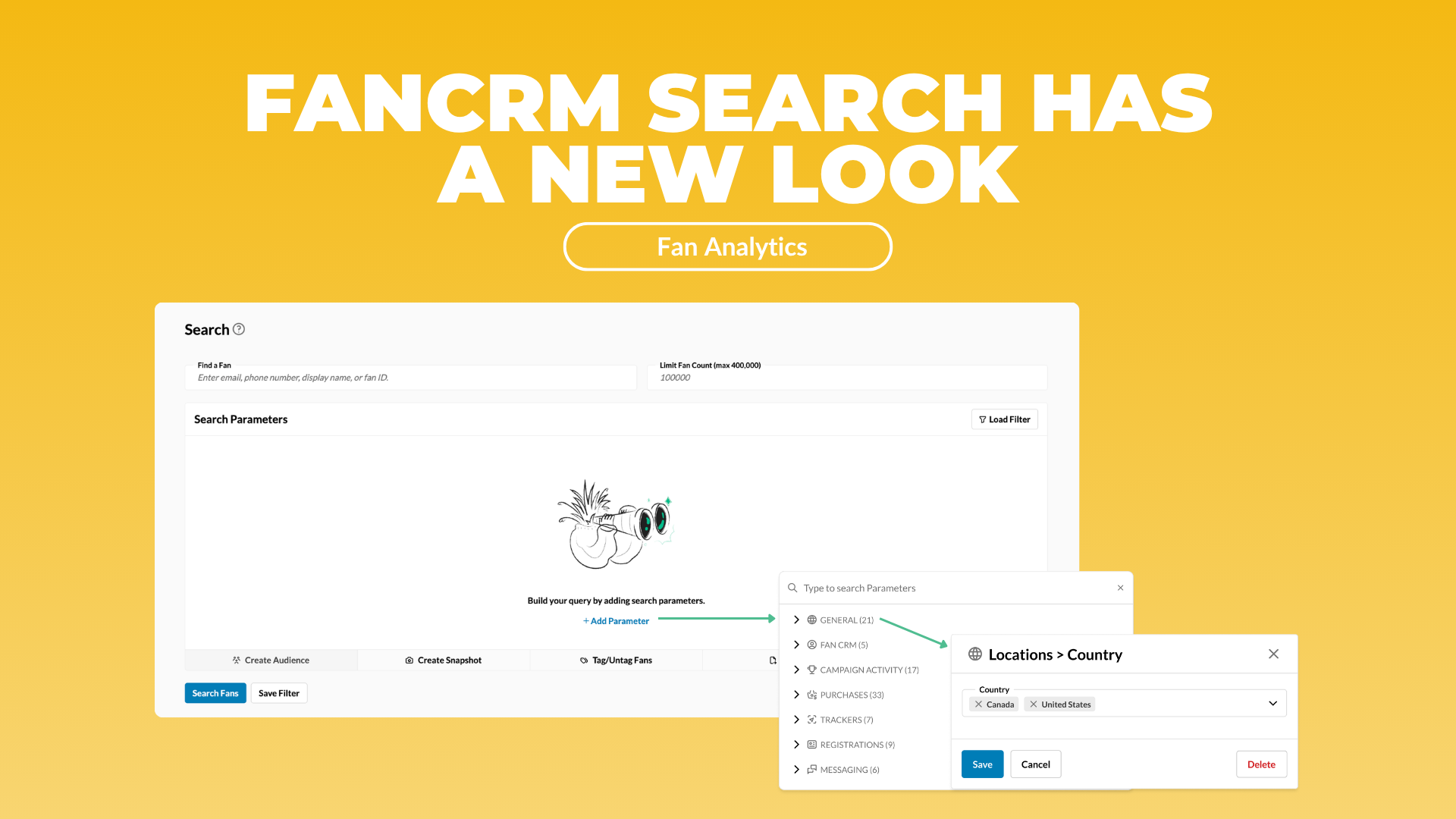
FanCRM Search has a new look! But a quick reassurance before anything else: no functionality is changing. Every filter, every parameter, every saved search you rely on today works the same. What's changing is how it's laid out - and it's a big enough visual change that we wanted to walk you through it.
What problem this UI change solves
If you've built a filter with a handful of categories - some purchase criteria, some campaign activity, maybe a location parameter - you know the old layout's real limitation: seeing what actually made up that filter meant scrolling down through section after section of input fields. The more complex the filter, the longer that scroll got, and the harder it was to look at a saved filter and quickly answer, "what is this, again?"
The new layout fixes exactly that. Every parameter in a filter now shows up as a small, simple chip - grouped by category - so you can see at a glance what's actually comprising a filter instead of hunting for it.
What's new
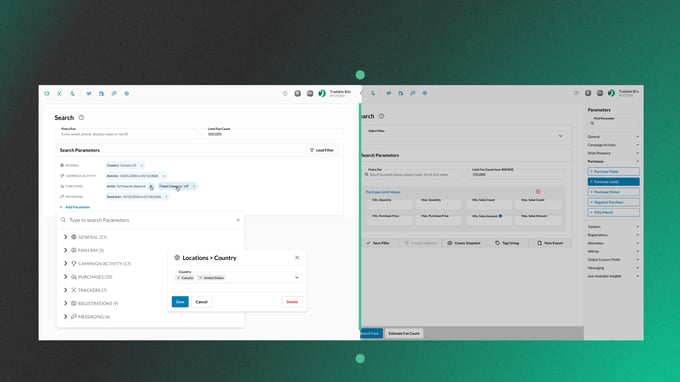
The old sidebar - which was the stack of category "wells" where every parameter lived - is gone. In its place, adding a parameter now happens inside a single searchable modal: type what you're looking for, or browse to find it, select it and configure it right there. Once you save it, it shows up as a chip in your Search Parameters panel, organized by category (General, Purchases, Campaign Activity, and so on).
Click the x to remove any chip.
Here's how you navigate CRM Search:
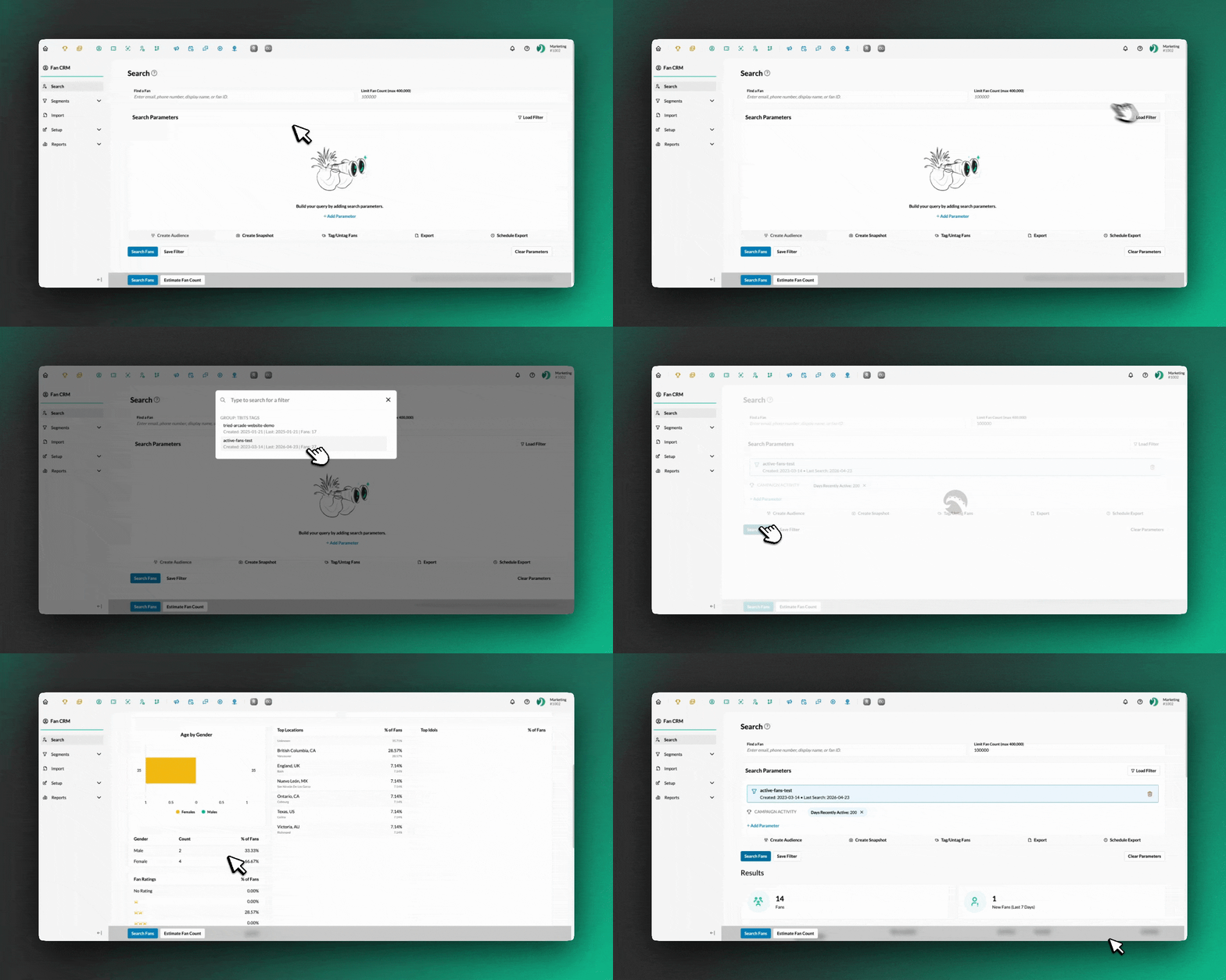
1. Load an existing filter
Click Actions > Load Filter in the top-right of the Search Parameters panel. Pick the saved filter you want, and every one of its parameters populates instantly as chips - visible without scrolling so you can see exactly what makes up that audience the moment it loads.
2. Create a new search or Filter
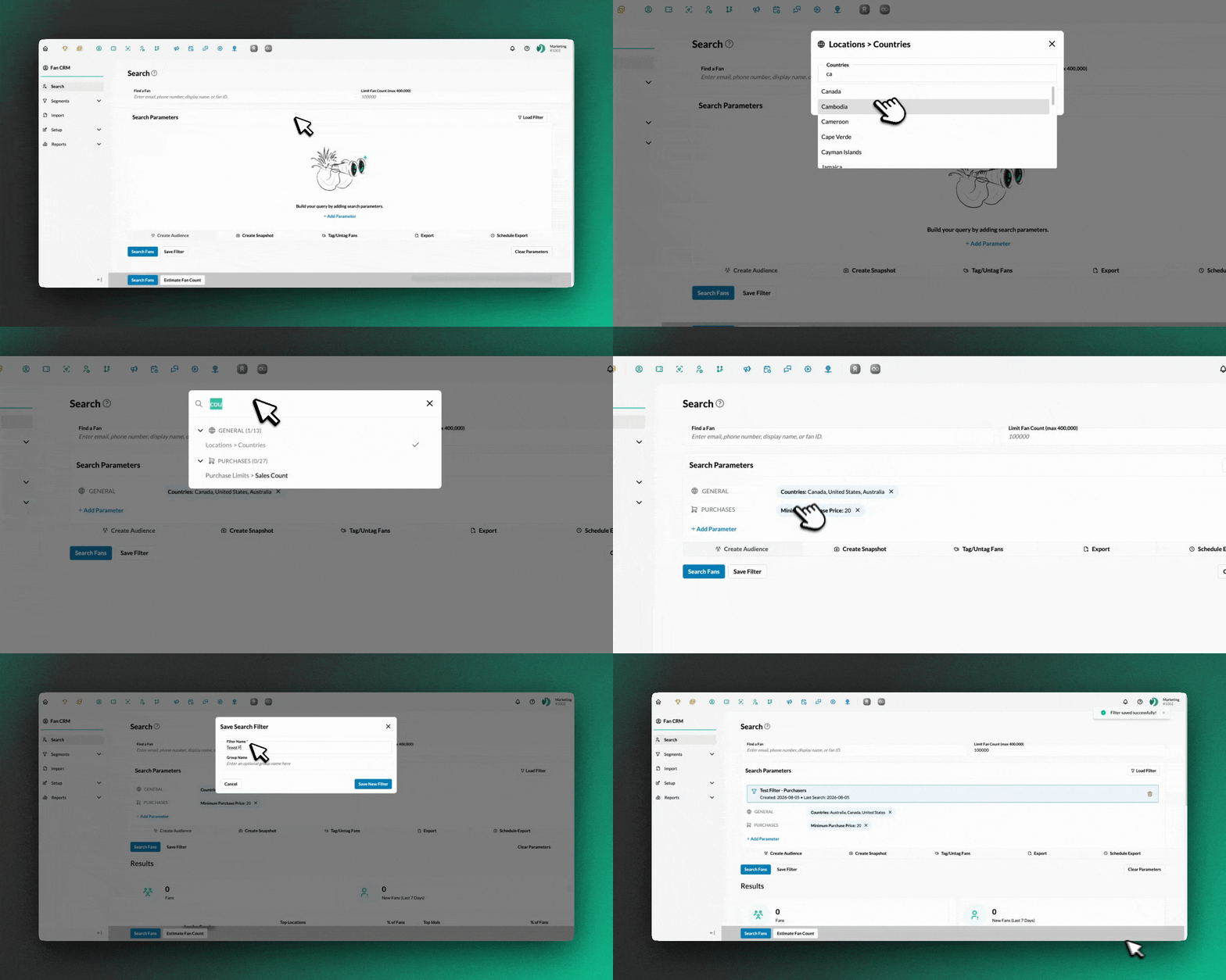
Click +Add Parameter at the bottom of the panel, pick your category and value, and it joins the panel as a new chip. If you want to change a parameter you've already added, you can delete it by clicking the "x" on the chip, then add your desired parameter.
3. Turn a saved filter into an Audience or export it.
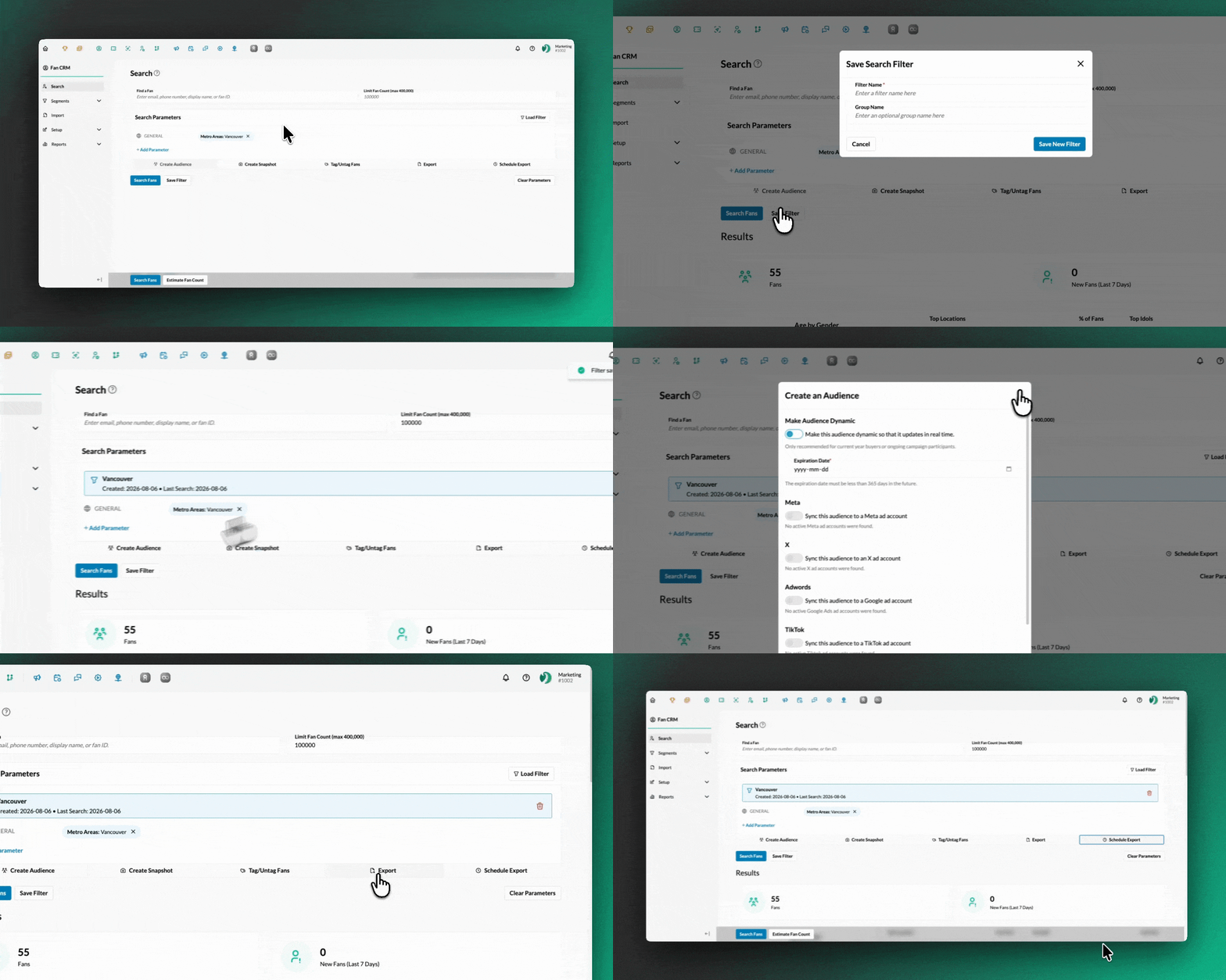
1. Once you've saved a filter, go to the Actions tab in the top-right and click Load Filter
2. From here, you can click on the Actions tab and do the following actions:
-
Create an Audience
- Create a Snapshot
- Tag/Untag Fans
- Export
- Schedule an Export
What's staying the same
Search Fans works the same way it always has - same search results, same fan samples, same stats. Every search parameter and criteria you use today is sticking around; nothing is being removed. This is a layout change, not a new system.
Questions?
Reach out to support@tradablebits.com or your CSM.