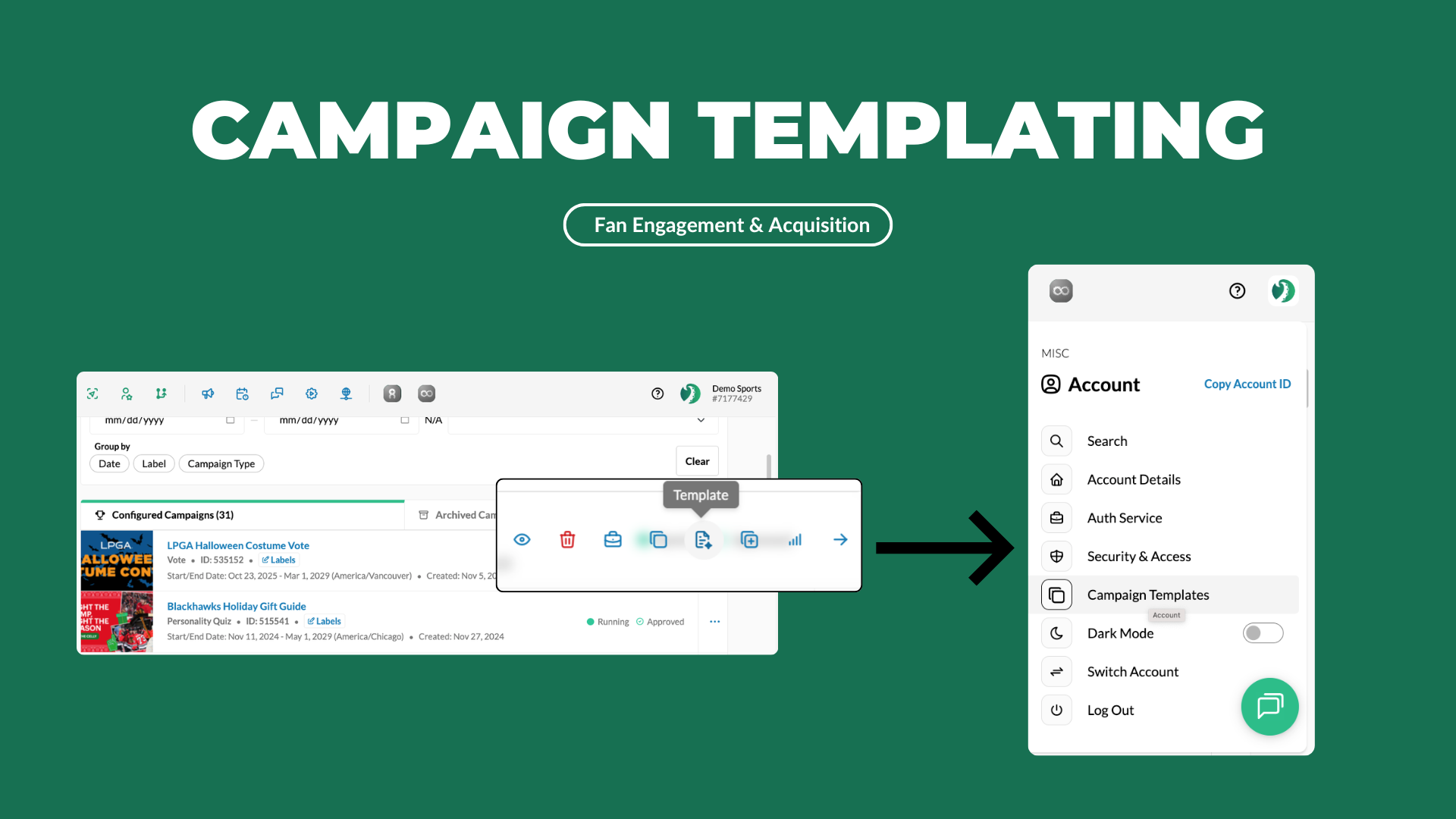
We're making a pretty fundamental change to how engagement campaign templating works within Tradable Bits.
Up until now, templating an engagement campaign usually meant downloading a file, keeping track of it somewhere on your computer and then uploading it back into the platform later when you wanted to use it again. In some cases, it also meant downloading and re-uploading a template every time you wanted to reuse a campaign already built.
That worked, mostly.
But this old templating setup also came with some friction - specifically around file size and image size restrictions, which limited what we could reliably support.
So we changed how templating works.
With this release, templates are no longer downloaded as files. Instead, they're now saved directly to your account in-platform, where they can be reused across businesses or imported across accounts by Template ID.
In other words, less file handling and a much cleaner way to make use of great campaigns you know you'll want to run again.
What's actually changing?
The biggest shift is in your workflow.
When you click Create Template, the template will no longer download to your computer. Instead, it gets saved to your account (top right modal on the platform).
From there, you can go into any business in that account, click load template and either:
So the workflow moves from "save a file somewhere on your computer and hope you can find it later" to "save it once in-platform and load it where you need it."
Important note: this is a breaking change
Because we've moved away from downloaded template files, previously downloaded templates will no longer work if you try to upload them back into the platform after this release.
For most users, this won't change much. But if you've been relying on an older downloaded template file as part of your workflow, you'll need to recreate those templates from the original campaign.
How to recover an older template:
-
Go back to the original campaign
- Unarchive it if needed
- Click Create Template again
- Save it to your account
- Use the Load Template from there moving forward -- just one reset and you're back in business.
TL;DR: New Workflow for Templating Engagement Campaigns:
-
Go to the business where the original campaign lives
- Click Create Template
- Save it with a name
- The template is then saved and stored at the account level
- Go to another business and click Load Template
- Choose a saved template or import one using a Template ID